Dynamic fields: types, visibility, mandatory fields
Add placeholders for the values that change in every contract, decide who can fill them in, and make them mandatory.
Written By Sebastian
Last updated About 3 hours ago
Dynamic fields are the placeholders in a template: the customer's price, the start date, the employee's salary. When someone creates a document, fynk asks for these values and inserts them wherever the field appears.
Available on all plans
Add a dynamic field
In the template, open Dynamic content → Dynamic fields in the right-hand panel and click Add dynamic field, or open the command menu (Ctrl/Cmd+P) and choose Dynamic field.
Enter a name, choose the type and set the options below.
Drag the field into the text where the value should appear. You can use the same field several times; it always has the same value.
A field doesn't have to appear in the text. You can also use it only to control a condition or to fill a metadata field.
Add fields to a PDF for signing
Upload the PDF with Sign document. Drag dynamic fields from the elements panel onto the places where information belongs. Use the placement aid to help position them. The fields sit on top of the PDF; the original PDF text is not changed.
Field types
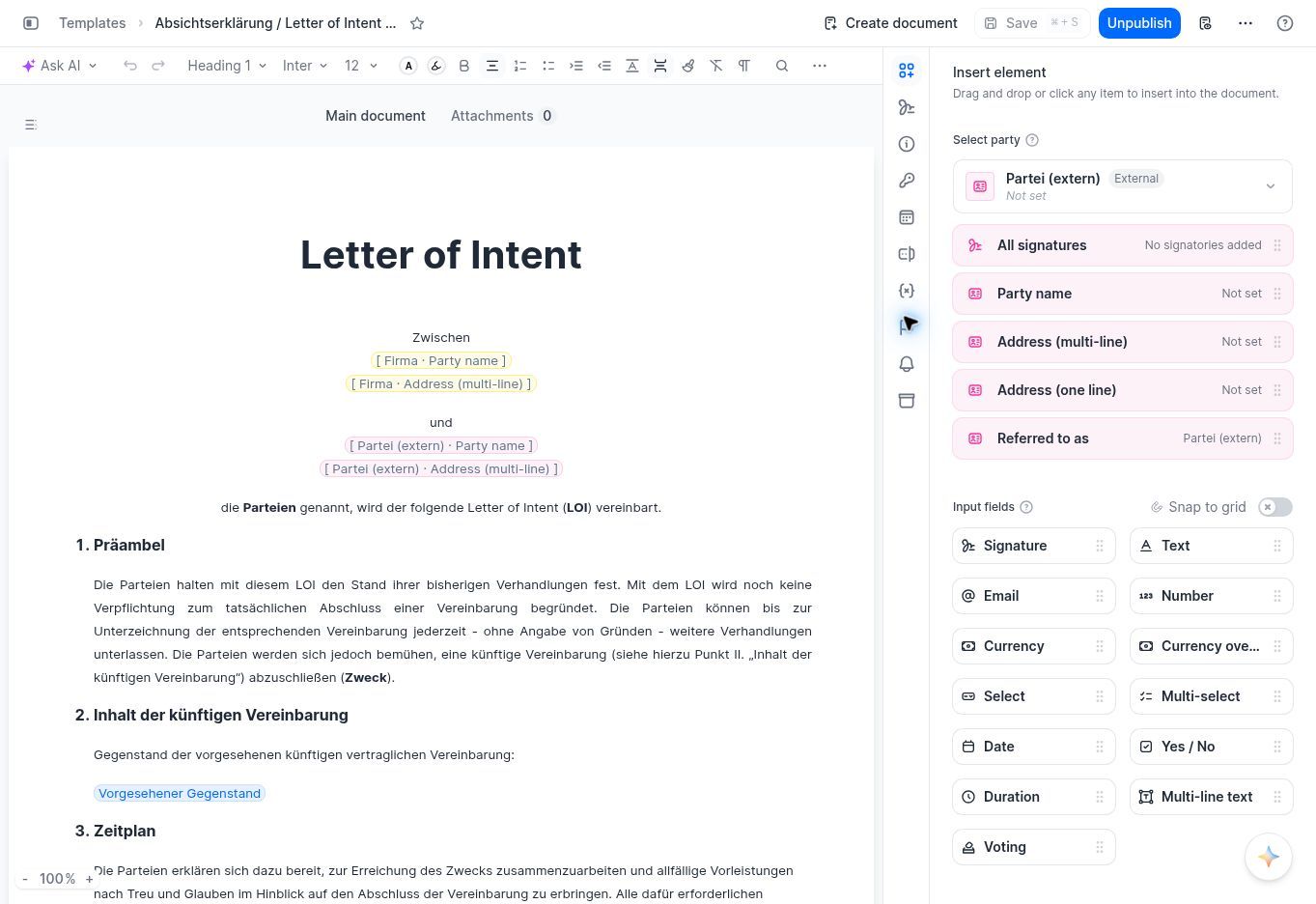
The Insert element panel groups the available input fields, including Text, Email, Select, Date and Multi-select.
[CHECK: confirm how Checkbox is exposed; it is not a separate type in the current template field picker.]
You can't change a field's type later. To use another type, create a new field and replace the old one.
Who can fill in a field
For each field, choose who can fill it in under Editable by:
Internal users: only your team can see and fill it in. Use this for internal notes and for values you set yourself.
Internal and external users: the other party can also fill it in when the document is shared with them, for example their company address or bank details.
If the other party has to fill in fields before signing, share the document for review first. They can then fill in the fields through their link before signing starts.
Mandatory fields
Mark a field as mandatory if the document can't go ahead without it. Signing can only start when all mandatory fields are filled in.
Mandatory fields must currently be filled in even if they sit in a hidden conditional section. Only make fields mandatory if they're always needed. [CHECK: still the case?]
Fill order
When creating a document, fynk asks for the fields in a set order. Arrange them in the panel, or use Arrange automatically to follow the order in the text.
Order the options in a Select field
In the template, open the Select dynamic field and arrange its options in the order you want. Documents created from the template show the choices in that order. This controls the options inside a dynamic field, not Select metadata options.
Link fields to metadata
Link a dynamic field to a metadata field so the value entered in the contract also appears in the document's metadata, for example the end date for reminders or the price for reports. See Dynamic fields, metadata or tags: which to use.
Good to know
Use Text rather than Number for IDs, tax numbers and phone numbers. Number only accepts whole numbers without leading zeros or symbols such as +.
For a Date field, open Autofill… beside the default value and choose Start of the signing process. Other options are Set to today, Document creation date and Start of the review phase.
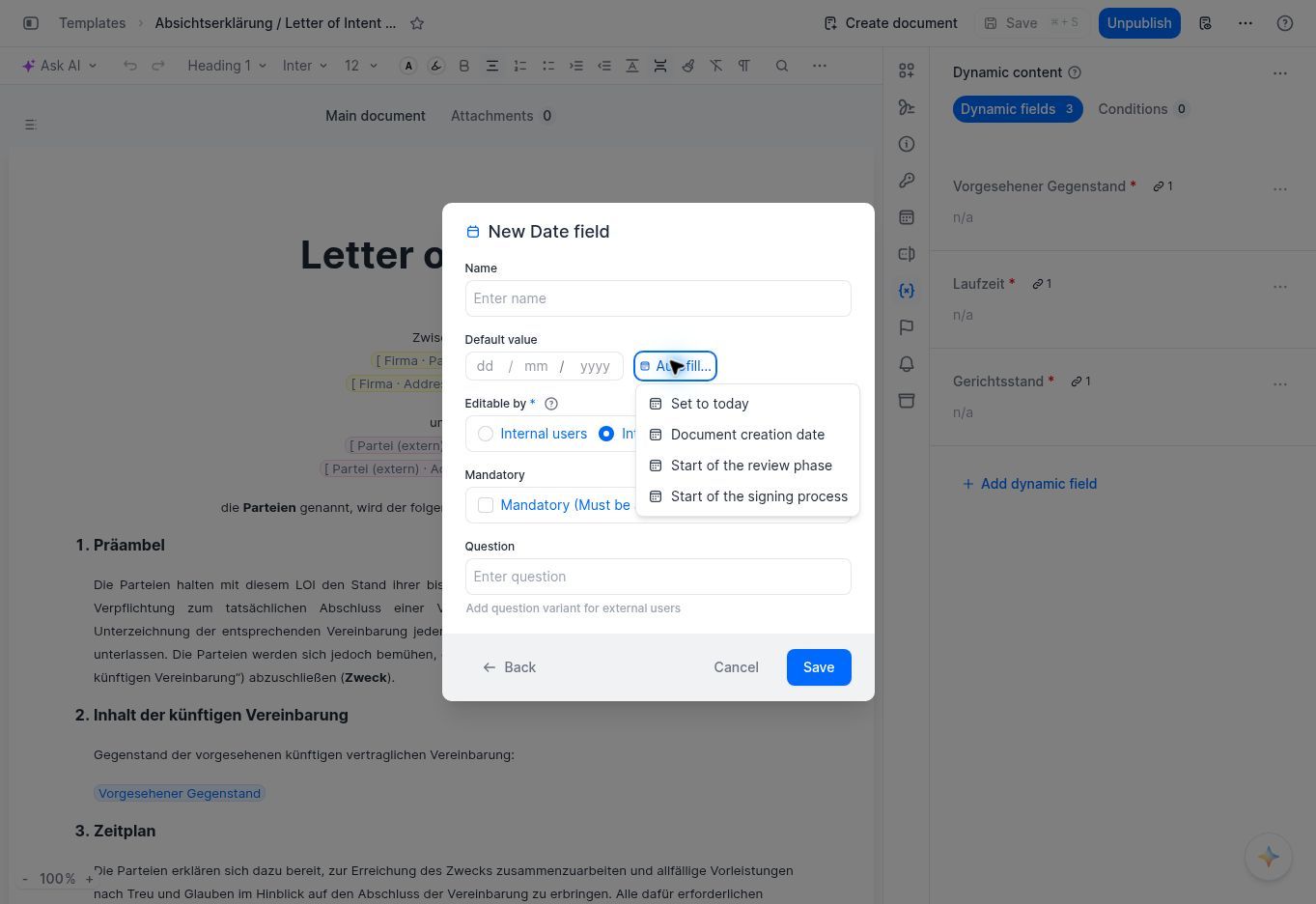
Choose when fynk should fill the date automatically—for example, at the start of the signing process.
Multi-select fields were added in April 2026 and checkbox fields in October 2026.
Dynamic fields can also be placed on uploaded PDFs that you prepare for signing. Drag them onto the PDF and use the placement aid to position them.
Fields you no longer use stay in the template until you delete them. Delete them in the dynamic fields panel ({x}).
A field's value can't be formatted, for example in bold or italics.
Fields don't check the format of what's entered, for example whether an IBAN is valid.
Related articles
Still need help? Share an idea